
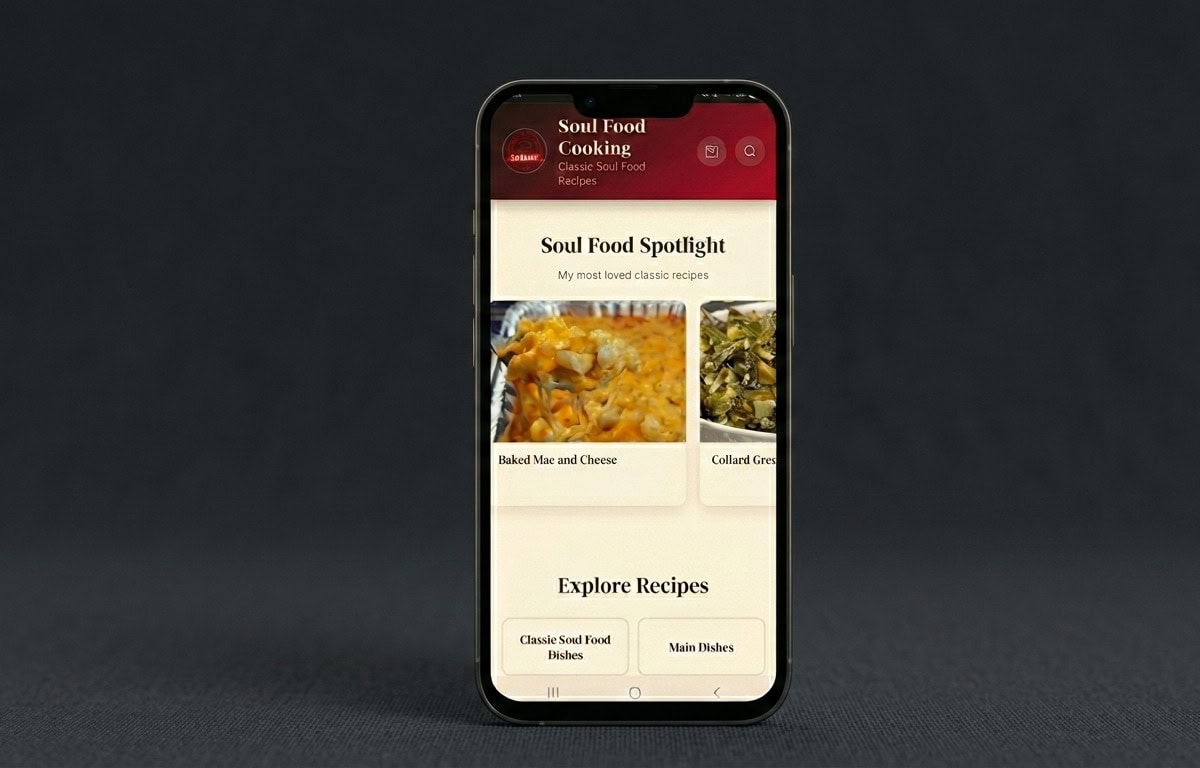
Soul Food Cooking App
Your favorite recipes are now just one tap away! The Soul Food Cooking app puts all of my recipes right on your phone or tablet, and it’s completely free. No app store needed, no downloads, no storage space taken up. Just a quick install and you’re ready to cook!
And here’s the best part: turn on notifications and you’ll be the first to know every time I drop a new recipe. No more missing out. No more scrolling through social media hoping to catch the latest post. The recipe comes straight to YOU.
Ready to get started? Pick your device below and follow the steps. It takes less than 30 seconds!
FOR iPHONE AND iPAD (Safari)
- Step 1: Open Safari on your iPhone or iPad. It has to be Safari for this to work, not Chrome or any other browser.
- Step 2: Go to soulfoodcooking101.com/app/
- Step 3: Tap the Share button at the bottom of the screen. It’s the square icon with the arrow pointing up.
- Step 4: Scroll down and tap “Add to Home Screen.”
- Step 5: Tap “Add” in the top right corner.
That’s it! You’ll see the Soul Food Cooking icon on your home screen just like any other app. Open it from there and you’re good to go!
Important: Your iPhone or iPad needs to be running iOS 16.4 or newer. To check, go to Settings, then General, then About, and look for the Software Version.
FOR ANDROID (Chrome)
- Step 1: Open Chrome on your Android phone or tablet.
- Step 2: Go to soulfoodcooking101.com/app/
- Step 3: Tap the three dots menu in the top right corner of Chrome.
- Step 4: Tap “Install app” or “Add to Home screen.”
- Step 5: Tap “Install” to confirm.
Done! The Soul Food Cooking icon will appear on your home screen. Open the app from there and start cooking!
TURN ON NOTIFICATIONS (Don’t Skip This!)
After you install the app and open it from your home screen, you’ll see a message asking if you want to know when I post a new recipe. Tap “Subscribe” or “Yes, notify me” and then tap “Allow” when your phone asks for permission.
Once you do that, every time I publish a new recipe, you’ll get a notification sent right to your phone. You’ll always be in the loop and never miss a thing!
This is how the #SFCFamily stays connected. I can even send you special messages, holiday greetings, and cooking tips straight to your phone. It’s like having me right in your kitchen with you!
Everything You Want to Know
Yes, 100% free. No app store account needed, no credit card, no subscription. Just open the link in your browser and tap Add to Home Screen. That’s it. I built this for the #SFCFamily because you should never have to pay to cook a good meal.
The app gives you quick access to browse and search all my recipes. Tap any recipe and it provides an ingredient/grocery list and takes you straight to the full post on my blog or my YouTube video, so you always get the complete recipe with all my tips and step by step instructions.
Apple controls how apps get added to the iPhone home screen, and they only allow the “Add to Home Screen” feature to work through Safari. If you’re on Chrome or another browser on your iPhone, just copy the link and paste it into Safari. The whole process takes less than a minute.
Yes! When I add new recipes to the app, your phone will automatically update the next time you open it with an internet connection. You’ll always have the latest recipes without having to do anything. Turn on notifications and I’ll let you know every time something new drops.
It looks and feels just like a regular app but it installs straight from your browser with no app store at all. You get the same home screen icon and the same full-screen experience — just without any of the app store hassle.
After you install the app and open it, you’ll see a prompt asking if you want to allow notifications. Tap Allow. If you missed that prompt, you can turn notifications on in your phone settings. Once you’re opted in, you’ll get a notification every time I post a new recipe — no algorithm in the way.